
Microsoft Fabric external data sharing is a powerful feature that allows us to share data with external users. This is particularly interesting because it enables data to be shared in-place from the sharer’s tenant without any data copy. We simply create shortcuts.
The use case for the customer in question involves data from Microsoft Dynamics 365 (D365) residing on two different Azure tenants. I needed a solution to share data from one tenant to the other.
For this, I created a Fabric Link to a Lakehouse in Tenant A and then enabled external sharing for Tenant B. At first, I tested with a couple of tables to check the result, and everything went well.
Today, I was trying to add the 190 tables required for the data warehouse solution. The first obstacle is that the UI does not let you select all at once; you need to pick the tables individually. When you want to pick 190 out of more than 800 available in Dataverse, this becomes tedious.
After I did this a couple of times, I was always getting an empty Link to copy:
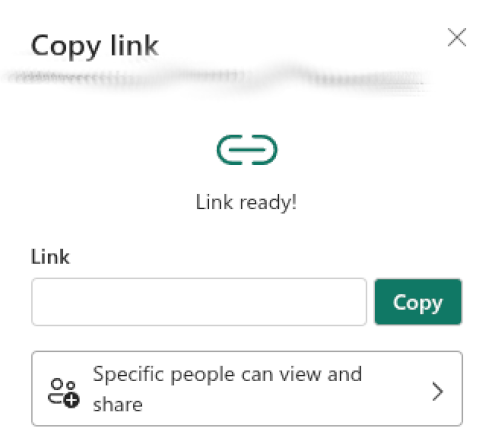
This looked suspicious: why did it work fine with a few tables but not with all of them? I started searching in the developer tools and found the reason:
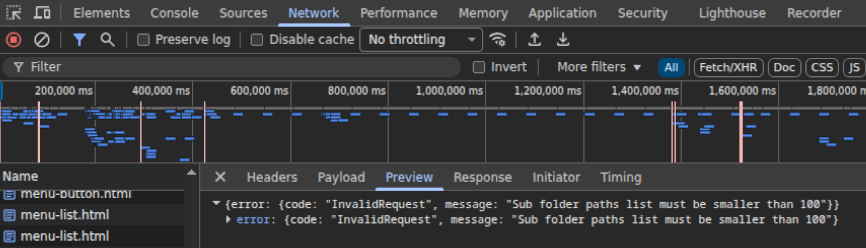
This limitation is missing from the official Microsoft documentation. At least it would be nice to get an error message detailing what’s on the payload. The work around is to create a link for every 100 tables you need.
As a bonus, here is some code to pick the tables in bulk by pasting it into the Developer Console of your browser. You will need to execute it several times while scrolling down because the tables are lazy loaded.
⚠️ Beware: This code might not work if Microsoft changes the web page in the future.
// Just add here the tables you need
// remember that you should only do 100 at a time
// or the link will be empty
const tableNames = [
    'table1',
    'table2',
    'table3',
];

// Find and check the checkboxes for these tables
let checkedCount = 0;

tableNames.forEach(tableName => {
    // Find the tri-tree-node element with the matching data-unique-id
    const selector = `tri-tree-node[data-unique-id="Tables/${tableName}"]`;
    const treeNode = document.querySelector(selector);

    if (treeNode) {
        // Find the checkbox input inside
        const checkbox = treeNode.querySelector('input[data-testid="tri-checkbox-input"]');

        if (checkbox && !checkbox.checked) {
            // Set the native state
            checkbox.checked = true;

            // Update aria-checked
            checkbox.setAttribute('aria-checked', 'true');

            // Update parent class
            const parentDiv = checkbox.closest('.tri-checkbox');
            if (parentDiv) {
                parentDiv.classList.add('checked');
            }

            // Trigger the SVG icon change
            const svgIcon = treeNode.querySelector('tri-svg-icon');
            if (svgIcon) {
                const useElement = svgIcon.querySelector('use');
                if (useElement) {
                    useElement.setAttribute('xlink:href', '#checkmark_12_filled');
                }
            }

            // Dispatch all possible events
            ['change', 'input', 'click'].forEach(eventName => {
                checkbox.dispatchEvent(new Event(eventName, { bubbles: true }));
            });

            // Trigger custom event for Angular
            checkbox.dispatchEvent(new CustomEvent('ngModelChange', { bubbles: true }));

            checkedCount++;
        }
    }
});

console.log(`Checked ${checkedCount} checkboxes for table names`);
console.log(`Total tables in list: ${tableNames.length}`);
Have fun!!